
Article
Save Formats in ALTRON: BMP, JPEG, TIFF, Raw Data or Video?
One of the first questions people ask us after setting up a camera is: "Which format should we save images in?" The short answer is that it depends on what you want to do with the file later. Choosing a format is not just a matter of taste. It directly affects disk space, processor load and measurement accuracy.
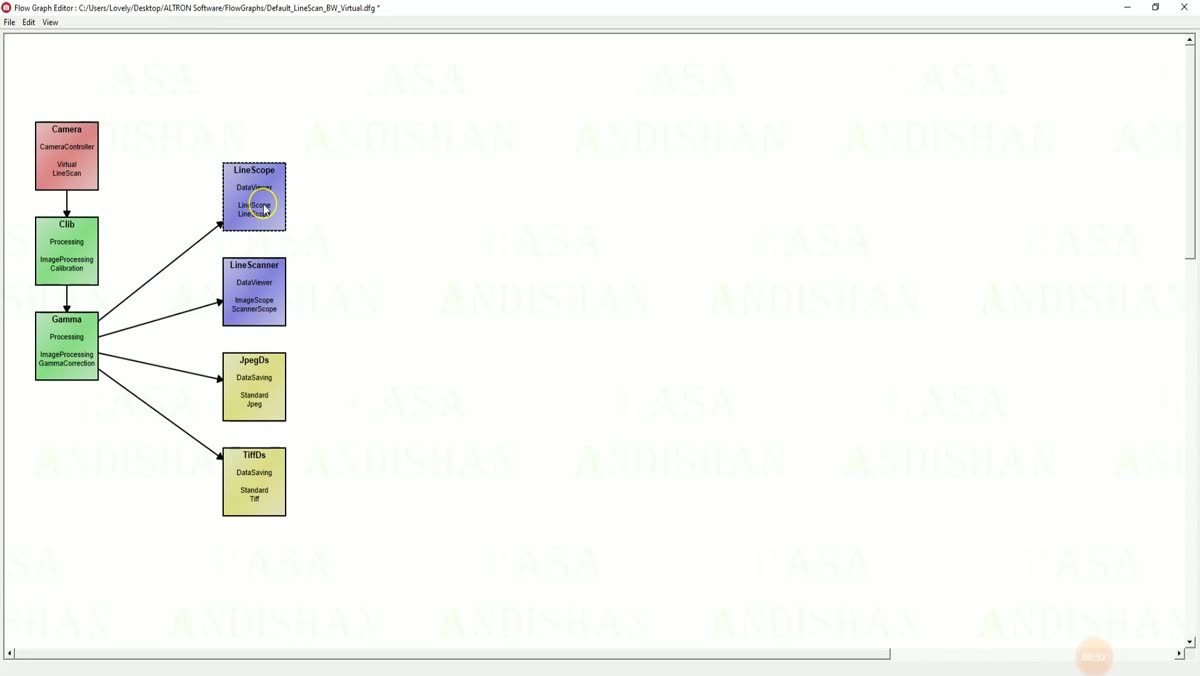
In ALTRON, saving is a node in the graph (the Data Saving family). To choose a format, you simply place the saving node for that format in the graph. If needed, you can branch one output to several nodes at once; for example, one node saves the data raw while another displays it.
BMP for simplicity
Bitmap Data Saving writes each frame as an uncompressed BMP. Nothing is lost, and almost any software can open it. The drawback is large file size.
On a line scan camera, Scan Height sets how many lines are stacked to build one image (default 1000). The DPI value is only written to the file header and does not change the pixels.
JPEG when size matters more
JPEG Data Saving uses lossy compression. You set the quality with Quality, from 1 to 100; the default is 100. If you set it below 90, edges gradually become blocky.
JPEG is a good choice for reports, previews or sending over a network. For long-term archiving, keep TIFF or raw data. We do not recommend it for measurement or scientific work, because it changes the data itself.
TIFF for precise work
TIFF Data Saving stores images losslessly and also preserves high bit depth. Most image analysis software can read it.
In the same panel, Compression has two options: None and Deflate. With Deflate the image stays exactly the same, but the file becomes much smaller. This compression runs on all processor cores. If your disk is slow, this option helps the disk keep up with the camera.
Raw data: the fastest path to disk
Raw Data Saving writes the camera's output bytes, without any interpretation, into one continuous file. It is completely lossless and also the fastest way to write. Its big advantage is that you can later play the same file back with RawDataPlayback and change the processing settings on the original data.
With Format you choose between two modes:
- Rasa RAW: each line or frame is saved with its line number, timestamp and extra bytes, and ALTRON's own tools can open it.
- ENVI: only the pixels are saved, in a .dat file, with a small .hdr text header created next to it. This file opens directly in ENVI, QGIS, GDAL, Spectral Python and MATLAB.
If the recording is very long, or you want to reach part of it without reading the whole file, Separated Raw Data Saving writes each frame or segment to a separate file. This node has lossless compression, and you choose its level from 0 to 22. The higher the number, the smaller the file, but the harder the processor works. At high data rates, this can cause dropped frames.
For finish-line photography, Photo Finish Timed Raw Data Saving also keeps the exact capture time of each line along with the data.
Video for viewing and sharing
For area scan cameras we have several video saving nodes. The H.264, H.265 and MPEG-4 nodes create mp4 files. There is also an AVI node. Temporal compression reduces file size by tens of times, and the file plays like an ordinary movie. Output FPS is the playback speed of the file and does not have to match the camera's actual rate. If you want playback in real time, set it equal to the camera's frame rate.
Which one should you choose?
- Measurement, calibration or scientific analysis: TIFF, with Deflate if the disk is slow.
- Reprocessing later with different settings: Raw Data Saving.
- Opening the data in spectral or GIS software: raw data in ENVI format.
- Long-term archive or reports: high-quality JPEG.
- Showing to a colleague or customer: video.
A mistake we see often
Many people save data that will be measured later as JPEG. The changes lossy compression makes to the data cannot be undone. If you are not sure, save raw: from a raw file you can produce any other output by playing it back, but from other outputs you cannot get back to the raw data.
One last point: all saving plug-ins share the same logic for path, recording limits and cache. Learn one and you know the rest. A fuller introduction to the software is in ALTRON page.
You can find a more general explanation of image file formats in Wikipedia (English).
If you are torn between two formats for your project, contact us and we will look at it together.