
Article
File Naming and Automatic Folder Organization for Recordings in ALTRON
After a few days of recording on a production line, the first thing you need is not image quality; it is finding the right file. Which file belonged to which shift? Which recording was made with which settings? File naming and automatic folder organization in ALTRON exist so that the answers are clear later from the file's name and path.
Where do the files go?
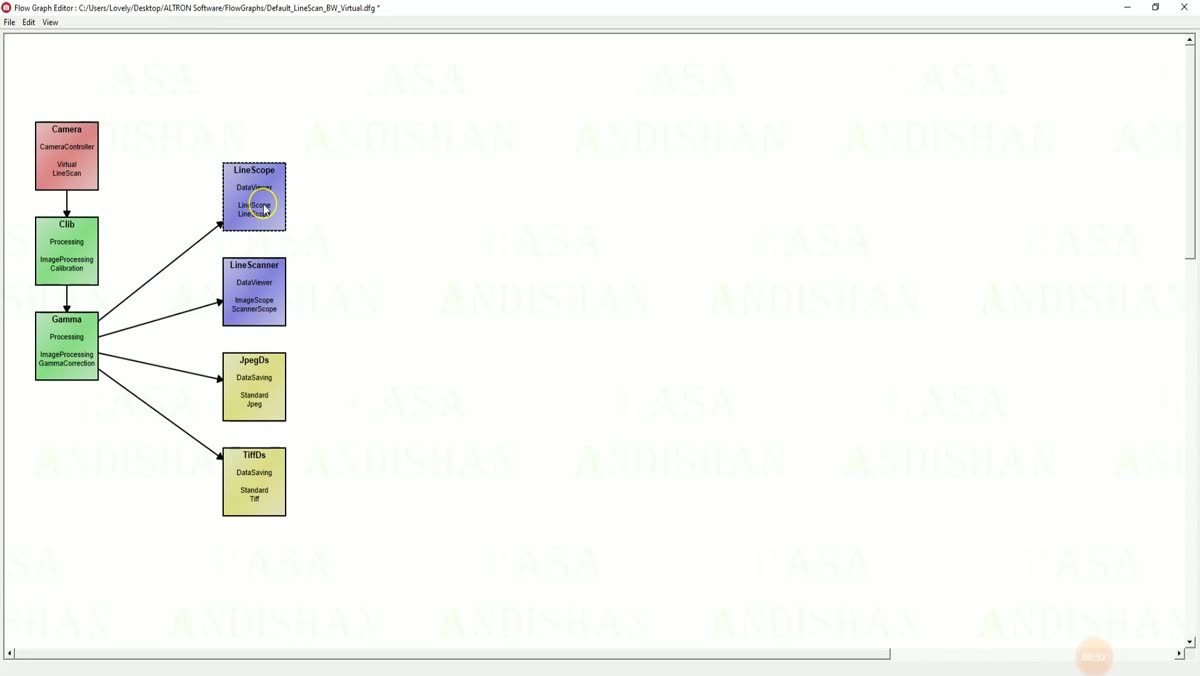
You set the main path in the Path field of each saving node. If you do not give a path, files are saved to the user's Desktop.
ALTRON does not dump files directly into that folder. For each recording, it creates a folder named after the output type under the main path. Inside that, it creates another folder named with the date and time the recording started:
Path/TIFF/YYYY-MM-DD_HH-mm/
The output type folder name differs for each saver: BMP, JPEG, TIFF, RAW or SEPRAW. For video, the codec name is used. As a result, outputs in different formats do not get mixed up, and each recording has its own folder. A metadata file with the json extension is also written next to each recording.
Prefix: the simplest label
In the BMP, JPEG, TIFF and separated raw data savers, the Prefix field is text that appears at the start of every file name. The job name, the camera name or the production batch number are good choices. Leaving it empty is fine too.
With the default settings, each file name is built from the prefix, an eight-digit number and the time, following a pattern like [Prefix]<8-digit number>_[time].bmp.
Savers that write the whole recording to a single file, that is, Raw Data Saving and the video nodes, have a File Name field instead of Prefix. For H.264 video, the .mp4 extension is added automatically, and if you leave the name empty, x264Vid.mp4 is used. For raw data, each new recording gets the next number, and this number is kept with the settings.
Set up the name format yourself
From Tools › Record › Set Common Params you can set, for each saver type, how file names are built:
- The number of digits in the file number, from 5 to 16.
- Whether the date and time appear in the name.
- How the time is written: compact, with separators, or compact with milliseconds.
- Separator: one of _, –, ., ~ and +, or no separator.
- Order: number first and then date and time, or the other way around.
This choice is stored separately for each saver type. Each node applies it the next time you press Start.
Tips from our own experience
- If you later gather files together in one folder, put date and time first so that alphabetical sorting is the same as chronological sorting.
- If you expect a very large number of files, choose more digits from the start so the numbers stay the same length.
- If the frame rate is high, choose "compact with milliseconds". That way, even files created within the same second can be told apart by name.
- Avoid unusual characters and spaces in Prefix. If the files go to other software or scripts, simple names cause fewer problems.
A common mistake
Many people change the Prefix or name format in the middle of a recording and expect it to take effect immediately. But these settings are read at the moment you press Start. So press Stop first, change the setting, and then press Start again.
A short general reference on file naming: Wikipedia (English).
We have introduced the other saving features in ALTRON page. If you have questions about organizing files for your own system, let us know.