
Article
Bad pixels in ALTRON: learning the map and correcting in real time
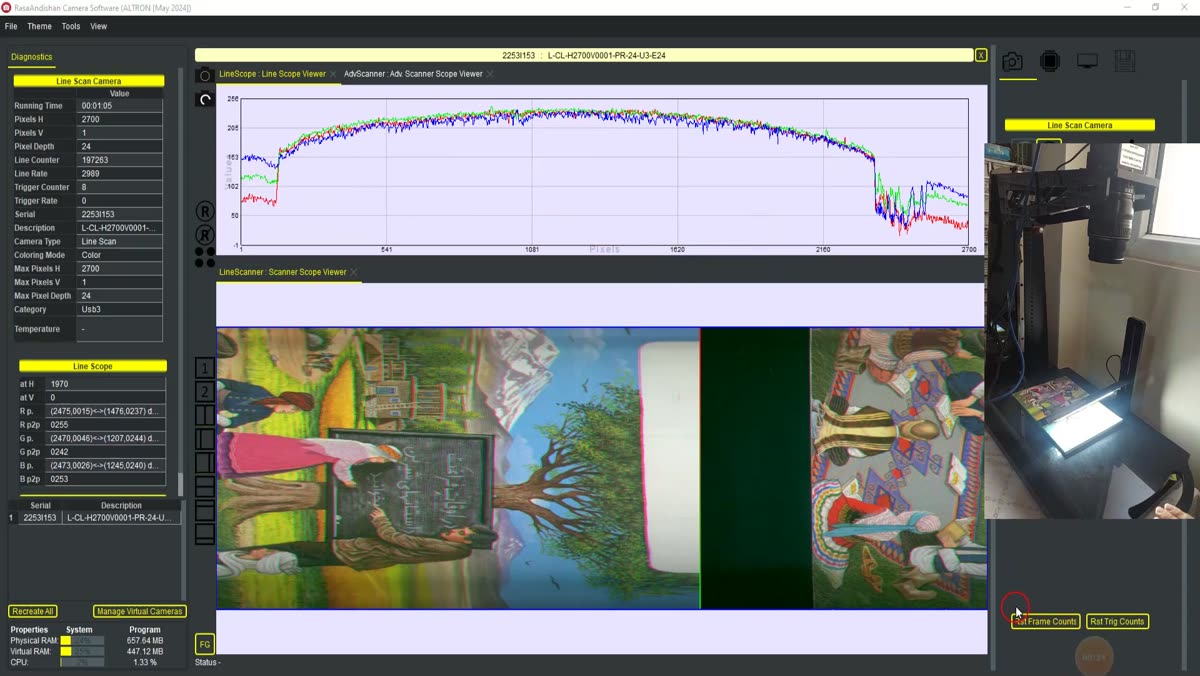
You open a scanned image and see a thin bright line running from the top of the image to the bottom. You check the next scan, and the same line is there, in exactly the same column. This is usually caused by one of the sensor's bad pixels. In a line scan camera, each pixel is repeated in every line, so a single faulty pixel becomes a continuous line through the whole image.
No sensor is completely flawless. Almost every sensor has a few dead or hot pixels. The question is not whether you have them. The question is what to do about them.
Types of bad pixels
- Dead: Always black or nearly black, no matter how much light reaches it.
- Hot: Always bright, even in the dark.
- Flickering: Jumps between two levels and changes from frame to frame. This type, also called RTS, may not be visible at all in a single image.
One node for learning and correction
In ALTRON, all of this is done with one node: BPC-Bad Pixel Correction. The same node learns the map and corrects the pixels while running. It works on both line scan and area scan cameras. Its settings panel opens under the title Runtime BPC.
The logic is simple. We don't guess in every frame which pixel is bad, because that guess could also erase real image detail. Instead, we build an accurate map once. From then on, we correct only those known pixels.
Building the map
- Point the camera at a uniform scene. For a thermal camera, the same uniform scene you used for non-uniformity correction works well.
- Press Start Learn. While learning, the button shows the number of frames.
- When enough frames have been collected, press the button again. The map is built and the program asks where to save the bpc file.
- Apply BPC is ticked automatically after learning, and the file path is shown in Ref file.
Next time, just load the same file with Load Map. If you ever want to start over, clear the map with Clear.
Three options that determine correction quality
Edge-aware (directional): On by default. It replaces a bad pixel with healthy neighbors along an edge, not across it. Without this option, a bad pixel that falls on a sharp edge is filled with the average of both sides of the edge, creating a blurred spot. In edge inspection, this difference matters.
RTS suppression (amp-gated): During learning, besides dead and hot pixels, it also flags pixels that fluctuate too much from frame to frame. This option affects the next map you learn, not the current one.
What happens without a map? If no map is loaded, the node falls back to an adaptive median. So it still works without calibration, but a learned map is more accurate.
Line scan camera settings
The Line-scan defective pixels section has two numbers. Neighbor count sets how many neighbors on each side are checked for detection. Setting it to zero turns this check off. Threshold % sets how far a pixel must be from the average of its neighbors to count as defective.
A low threshold increases sensitivity, but it may also smooth out fine, real detail. A high threshold catches only severe defects. On a line scan camera, if a suitable learned map is loaded, correction is based on that map.
A common mistake: forgetting Set
If you change Apply BPC, Edge-aware, RTS suppression or the two line scan settings, the change does not reach the plug-in until you press Set. We have often seen someone change the threshold and wonder why the image didn't change.
A side note
The position of this node in the graph matters. A bad pixel is a physical sensor defect, so its correction must come before cosmetic changes such as gamma and sharpening. If you place it after them, the sharpening filter first builds a halo around the bad pixel, and then it can no longer be cleaned up.
A short general source on defective pixels: Wikipedia (English).
This feature is also used for Thermal camera. If you see a line on your sensor that this method does not remove, use contact page to send us a picture of it.