
Article
Raw data playback in ALTRON, and finding any setting fast
One good recording of a fault is worth more than reproducing the same fault ten times on the production line. A live scene never repeats exactly: the light changes a little, the part arrives slightly out of place. Raw data playback in ALTRON solves this problem. Alongside it, we also introduce a small tool that makes finding settings faster.
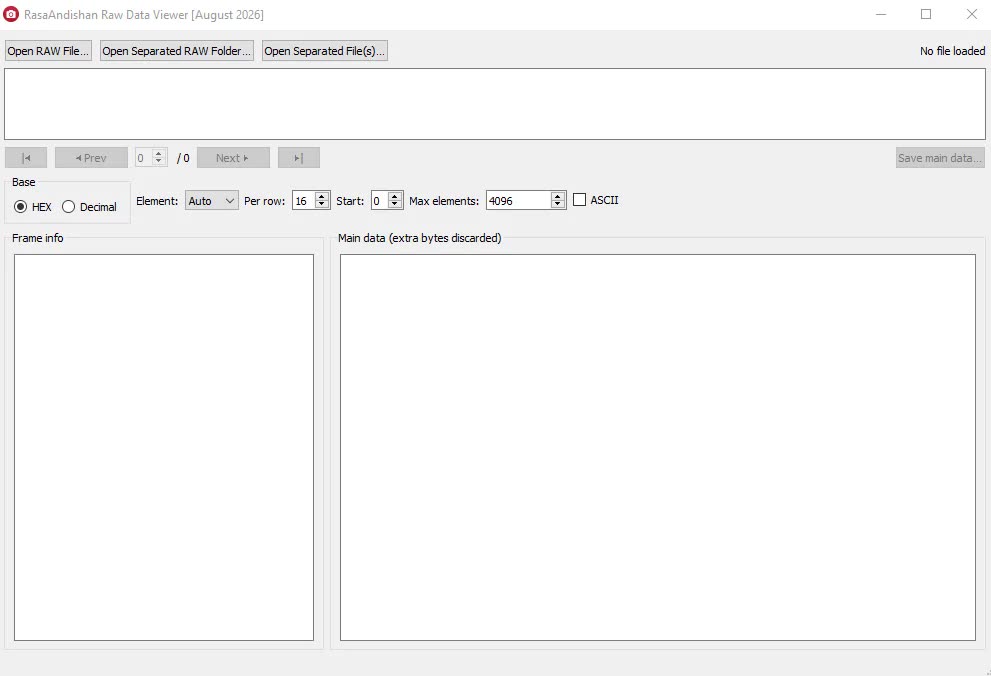
What exactly does playback do?
The RawDataPlayback plug-in sends recorded raw data back into the graph in place of a live camera. To the rest of the graph, it makes no difference whether the data came from a camera or from disk. So you record once, then play the same data back many times with different processing settings and compare the results precisely.
For this, save the data raw, not as JPEG or video. The RawData node writes the camera's output bytes losslessly, without any interpretation, into one continuous file. The SeparatedRawData node saves the same data as separate files and can compress them.
Playback works on a folder of separated files. If you have a single file, open the SingleRAW to SepRAW Converter tool from the Tools menu. It converts the file into separate files.
- Open the Manage Virtual Cameras window from the Tools menu and press + Sep Raw. A playback source is created with a new serial number and opens with the default playback graph.
- In its settings panel, choose the recording folder with Browse….
- Press ▶ to start playback. Press ⏸ to pause and ■ to stop.
- Set the speed in Playback speed (count/s). The default is 25 records per second.
- To move through the recording, use the slider or the ±1, ±10, ±100 and ±1000 buttons.
During playback, Time and Index show the current position in the recording. File Name gives the name of the current file, and File Time shows when that file was recorded. The Repeat option, on by default, restarts playback from the beginning when the recording ends. With Send Modification Time, you can write the file time onto the image itself, and you set the size of this text with Font Size. If your camera sends extra bytes with each record, the Extra Bytes section shows them.
Leave Repeat on and pause on a specific record with ⏸. Now change one parameter in the processing plug-in and look at the result. Because the input is fixed, any difference in the output comes from that parameter alone. Note the Index number so you can return to exactly the same record later.
ALTRON graphs sometimes have dozens of nodes, and each node has its own settings panel. Instead of hunting through tabs, type the setting's name, such as Gamma or Exposure, into the UI Search box at the top of the left column.
- The search covers the panels in every group: camera controller, processing, display and storage. The menu and the diagnostics sections are included too.
- When you select a result, the interface jumps to that control and highlights it.
- If Focus on result is ticked, the cursor lands directly on that control and you can change the value right away.
- Some plug-ins also have related keywords; for example, typing mp4 or hevc finds the video recording plug-ins.
Combining the two is very useful for troubleshooting. You play back the data, pause on a record, and use UI Search to go straight to the parameter you want to test. You no longer need to remember which plug-in and which tab it was in. To learn about the rest of the features, see the ALTRON.
A short, general resource on raw image data: Wikipedia (English).
If you have a recording that shows odd behaviour and you'd like us to look at it with you, reach out through contact page.