
Article
Dark and white calibration in ALTRON and correcting lens vignetting
Try a simple experiment. Place the camera in front of a perfectly uniform white surface and look at the image. Most likely the center is slightly brighter than the corners. If you look more closely, you'll also see columns or pixels that differ slightly from their neighbors. The surface is uniform; the image is not. Dark and white calibration in ALTRON exists precisely to remove this discrepancy, together with compensating for the darkening of the lens corners.
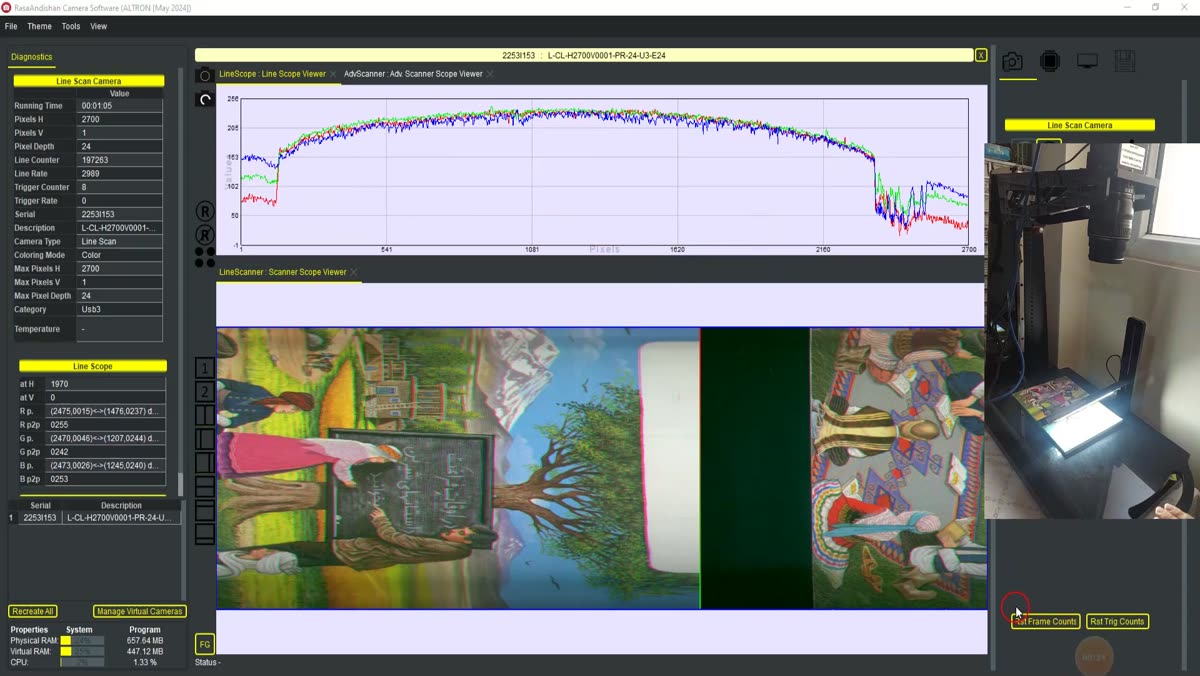
Where does this unevenness come from?
It has two main sources. The first is the sensor itself. Even in total darkness, each pixel gives a slightly different number. Under the same light, the pixels' sensitivity isn't exactly identical either. The second source is the lens. Every lens passes less light at the edges; this phenomenon is called vignetting. Uneven lighting has the same effect.
In measurement and inspection, the result is that an identical object reads darker in the corner than in the center. The threshold you've set for detecting defects flags false defects at the edges. This is a systematic error, not noise, and a single calibration removes it.
In the graph editor this node is called FlatFieldCorrection, and its settings panel opens with the title Correction (Dark & Gain). It works on both line-scan and area-scan cameras. It is already present in the ready-made line-scan camera graphs. For an area-scan camera, add it in the graph editor. This node performs two corrections at once:
So you usually don't need to treat corner darkening separately. A white map taken with the real lens and lighting already includes it.
- Set exposure and gain to the values you use in real work. A reference taken with other settings will make the correction wrong.
- Put the lens cap on or block all light completely. Press Capture Dark, wait a few moments while the frames are averaged, and press Stop Dark. The map is built and applied, and the program asks where to save the dark.corr file.
- Remove the cap and put a uniform white surface in front of the camera, with no saturated areas. Press Capture White, then Stop White, and save the white.corr file.
- The Apply Offset and Apply Gain checkboxes are ticked automatically after each map is captured or loaded.
Next time you don't need to calibrate again. Use Load Dark and Load White to load each map separately from its corr file. Clear All clears both maps at once.
The White to option sets the level the white scene should reach after correction:
After changing this option or the file paths, press Apply so the settings reach the node.
Sometimes placing a uniform white surface across the entire width of the line isn't practical. For line-scan cameras we have the LSHC-Lens Shading Correction node. Its only setting is Strength (%), and its default of 0 means off. The node raises the gain toward the edges of the line to compensate for lens-induced darkening. This compensation is approximate, and a measured white map is always more accurate.
Start with a low value and raise it gradually until the edges are level with the center. If the edges become brighter than the center or grainy, Strength is too high.
- Capturing the white reference with a shorter or longer exposure than in real work.
- A white surface with spots, texture or reflections. Any unevenness in it is recorded in the map and ends up on every image that follows.
- placing this correction after gamma or sharpeners. Physical sensor corrections must come before any cosmetic changes, otherwise the result silently becomes wrong.
- closing the white.corr save window without saving. The map works for now, but it will be lost the next time the program is opened.
Whenever you change the lens, aperture or lighting, capture the white reference again. A white map belongs to the lens and lighting combination it was made with.
For a more general explanation of flat-field correction, see Wikipedia (English).
For questions about camera calibration line scan or area scan camera, ask us through contact form. We're happy to help.