
Article
White balance in ALTRON: automatic or with a white card?
Why does a sheet of white paper look slightly yellow in the image under workshop lamps, and slightly blue under fluorescent tubes? Our eyes compensate for the color of the light; a camera does not. White balance adjusts the gains of the red, green and blue channels so that white stays white.
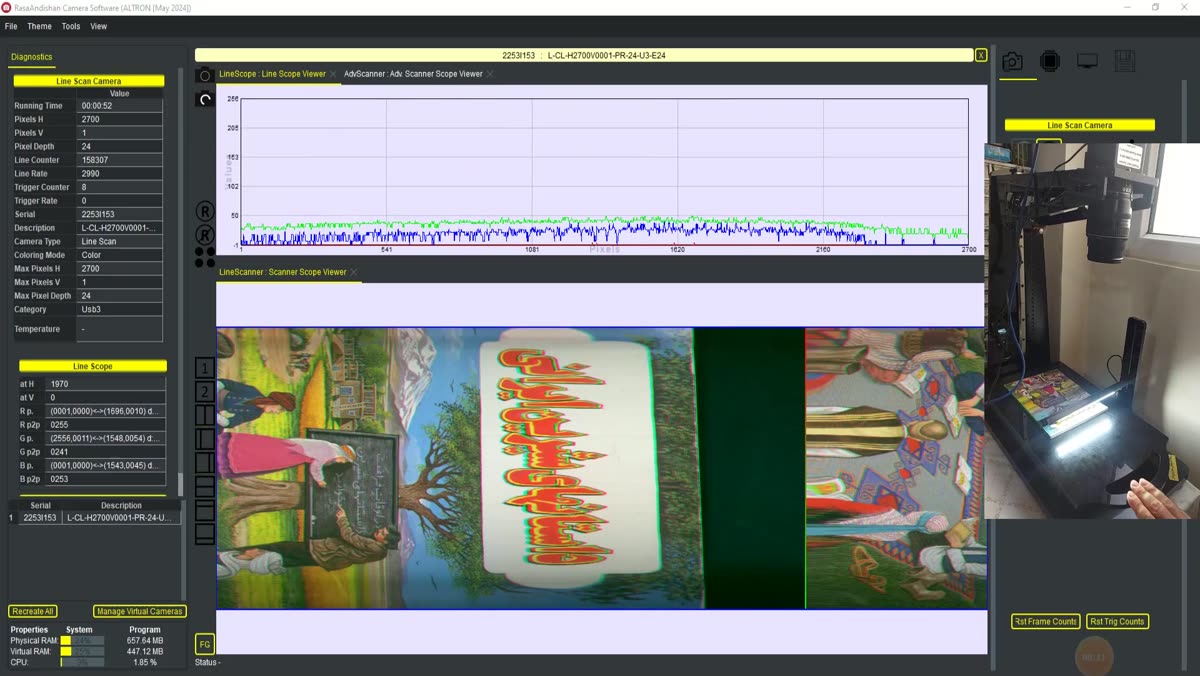
ALTRON offers two ways to do this. The first is automatic white balance, which keeps calculating the gains from the image itself. The second is manual white balance, which you calibrate once on a white card and which then stays fixed. The choice between them depends more on your lighting than on taste.
The AutoWhiteBalance plug-in uses the Shades of Gray algorithm. It assumes that the scene is neutral on average, with brighter areas weighted more heavily, and derives the gains from that assumption. The plug-in comes in two versions: one for line scan cameras and one for area scan cameras. In both, the white point is recalculated for every frame.
You turn it on and off with the Activate/DeActive switch. A green light means the algorithm is running; red means it is off.
The most important setting is the white point reference, Reference (White Point):
When the algorithm's assumption is wrong. For example, if one color, such as red fabric or a colored sheet, fills the whole frame, the algorithm assumes the light is red and "neutralizes" the real color. In color inspection, that is exactly what you don't want.
The second problem is fluctuation. If the ambient light is constant, recalculating the gains all the time only makes the color drift up and down slightly as the scene content changes.
For constant lighting, the WhiteBalance plug-in is the better choice. You calibrate once and the same gains are used every time. The result is stable and repeatable. The steps are:
- Place a uniform white surface, such as a white card, in front of the camera so that it fills the whole frame.
- Press Compute and Save Factors. The gains are calculated from the last raw input frame and saved in a file with the wb-factors-rev2 extension. The file name is built from the camera's serial number, model and resolution.
- Load the file with Load and press Enable.
- Check the Compatibility line. If it stays at Nothing, the file does not match this camera's dimensions and format.
These gains are calculated for each pixel separately, not as one number for the whole image. So if the light on the card is not perfectly even, that unevenness is recorded in the gains too. Keep the card flat and evenly lit.
If you capture raw Bayer data, the BayerAutoWhiteBalance plug-in does the same job before debayering. It ignores strongly colored, very dark and saturated areas, and estimates the light only from areas close to neutral. Compute Every sets how many frames pass between recalculations of the gains (default 25). A lower number reacts faster to changes in light. A higher number keeps the color more stable.
On a line scan camera, besides the line scan version of AutoWhiteBalance, the camera panel itself has two sets of R, G and B sliders. Brightness sets the black level of each channel. Contrast sets the gain of each channel. For manual color balance, use Contrast. Just remember that gain amplifies noise too.
Get the exposure right first, then move on to white balance. No gain can produce correct color on a saturated image. On a production line with constant lighting, prefer calibration on a white card. Keep automatic balance for places where the light really does change.
For a more general explanation of color balance and white balance, see Wikipedia (English).
To learn about the other color tools, visit the ALTRON software page. If your image colors still don't come out right, ask us via contact us here and we'll look into it together.