
Article
The ALTRON diagnostics panel: actual rate, counters and camera housing temperature
A line scan camera is installed over a conveyor and the image is on screen. Everything looks fine, but the image seems slightly compressed and nobody is sure what rate the camera is really running at. At a moment like this, the first place we look is the ALTRON diagnostics panel, not the camera settings.
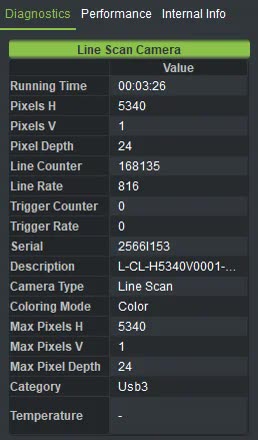
This panel sits at the bottom of the left column of the main window and has three tabs: Diagnostics, Performance and Internal Info. Here we only cover the first tab, the one that shows the camera's live details.
We go through the rows in the order we usually check them ourselves:
The number you enter in Desired Line Rate is a request, not a guarantee. If the exposure time doesn't fit that rate and Exposure Priority Over Fps is on, the software keeps the exposure and lowers the line rate.
That is why we always compare Line Rate in this table with the requested number. If it is lower, the cause is either the exposure or somewhere in the data path. On a line scan camera, this difference shows up directly in the image: when the line rate doesn't match the object's speed, the image is stretched or compressed. We have written more about this type of camera on the line scan cameras page.
On a line where the camera runs from sensor or encoder pulses, Trigger Counter is the installation technician's best tool. The method is simple:
- In the trigger tab of the camera panel, set Trigger Mode to Hardware Triggering and start acquisition.
- Pass an object in front of the sensor or start the belt.
- Watch Trigger Counter. If it doesn't increase, the problem is in the wiring or Trigger Polarity.
- If the counter increases but Trigger Rate is about half what you expect, there are two possibilities: either you need Both Edges, or Trigger Factor is set to the wrong value.
Just watch these two numbers for a few seconds. That alone saves hours of unplugging connectors and swapping cables.
If you have enabled Crop Line, Pixels H shows less than the full sensor width. This is normal and actually confirms that the crop is applied at the source. To confirm this, the fastest way is to compare Pixels H with Max Pixels H.
Sensors and electronic parts change their behavior slightly as they warm up. On a thermal camera this matters more, because the calibration shifts with the camera's temperature. That is why, when working with Thermal camera, we recommend waiting until the camera reaches its operating temperature before measuring.
The Temperature cell is more than just a number. Its background flashes: green means the temperature is normal, yellow means it has passed the warning level and red means it has reached the critical level. In red, a warning beep also sounds, so an operator who isn't looking at the screen is alerted too.
When something isn't working, it is tempting to go straight to the settings and start changing numbers. We suggest you first spend half a minute on this table. The actual rate, the counters and the data dimensions usually tell you where the problem is. If the signs aren't clear, the next step is the Performance tab.
If you want to read more about the theory behind frame rate, see this Wikipedia article (English) is a good start.
If the numbers in this panel don't match what you expect on your camera, write to us via contact page and we'll look into it together.