
Article
ALTRON at a glance: one program for all your cameras
If you have a line scan camera, an area scan camera and maybe a thermal camera on the same production floor, you have probably wondered: do I need to learn a separate program for each one? Our answer is ALTRON software. It is the software we deliver with every camera. You use it to connect the camera, view its image, process it and save it. All in one window.
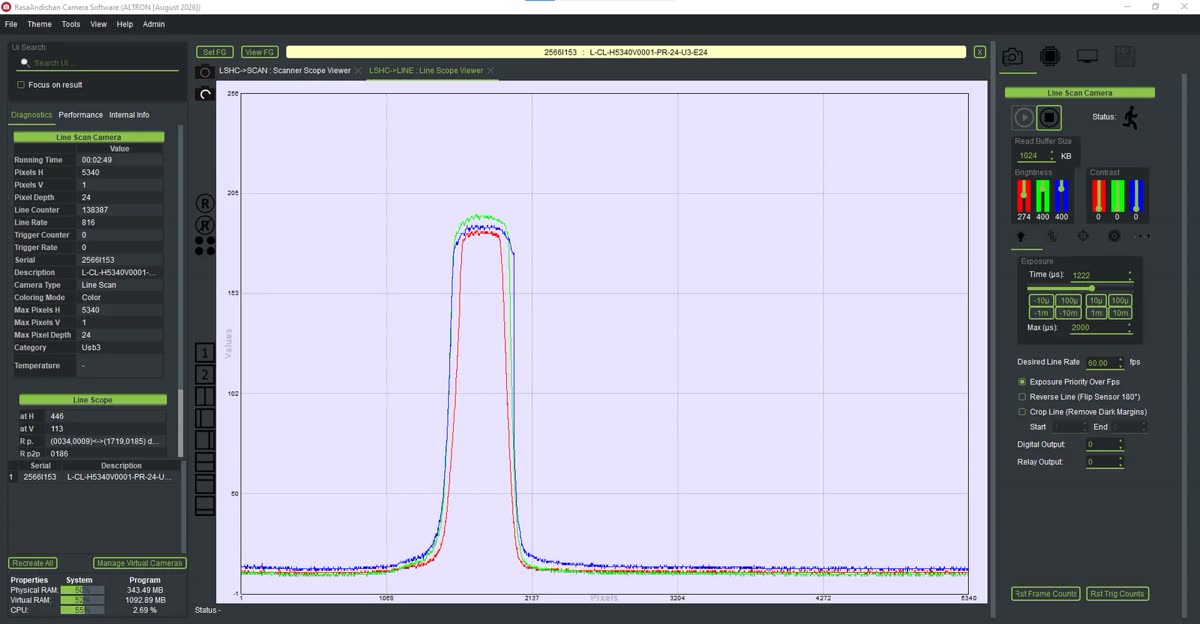
Each post in this series looks at one ALTRON feature on its own. But before the details, it helps to understand the logic of the program itself. The rest of the series builds on this foundation.
ALTRON is not a closed program with a few fixed menus. The image passes through a path we call a data flow graph, or flow graph. Each station on this path is a node. Each node is a plug-in that does one specific job.
A simple path for a color camera might look like this: camera, black level correction, debayer, white balance, gamma and finally a display. If you remove a node, that step doesn't happen. If you swap two nodes, the result changes too. Each graph is saved in a file with the .dfg extension.
This flexibility is what makes one program usable for very different jobs: industrial inspection, thermal imaging, spectroscopy and photo finish.
Every node in the graph belongs to one of these five families. Know these five and you know the structure of the whole software:
Each plug-in name carries one of three labels: ASC, LSC or ASC/LSC. ASC means it is only for area scan cameras, which capture a full frame each time. LSC means it is only for line scan cameras, which capture one row of pixels each time, with the object's motion building the second dimension of the image. ASC/LSC means both.
So before anything else, know which type your camera is. Many plug-ins work with only one of them.
A tip for your first days: instead of hunting through tabs, type the setting's name in UI Search, for example Exposure or Gamma. With the Focus on result option, the cursor jumps straight to that control.
Open the graph editor from Tools › Flow Graph Editor. In this editor, the color of each box shows which family the node belongs to. The editor can arrange the nodes in a logical order and connect them for you.
A mistake we often see is that the graph is edited and saved, but the change doesn't take effect. The reason is simple: after saving, you need to click Recreate All in the main program so the chain is rebuilt.
The Tools menu has several standalone tools. With Lens Calculator you can choose a lens before you buy it. Color Correction Calculator builds a color correction matrix from a color chart. With Raw Data Viewer you see exactly what was written to disk. The Help menu also offers SDK – Code Generator, which creates sample code in eight languages from the current graph. If your camera hasn't arrived yet, create a virtual camera with Manage Virtual Cameras and test the whole path without hardware.
In the next posts we cover each of these one by one, with practical details.
You can find a more general explanation of machine vision on Wikipedia (English).
If you want to know how ALTRON fits your camera or production line, send us your question through the contact page.